React Firebase 🔥

Heyy!! I am Ashish Prabhakar Final Year Student on Bachelor of Computer Application with a passionate Full Stack Developer with a strong focus on building scalable and efficient web applications. My expertise lies in the MERN stack (MongoDB, Express.js, React.js, Node.js), Open to new opportunities in software development and eager to contribute to innovative projects on Full Stack Development
Building a React Firebase Authentication with OTP Validation
In this blog, we’ll build a simple authentication system using React and Firebase, enabling OTP validation for user sign-in via phone numbers.

Project Overview:-
Setup Firebase
Create React Project
Configure Firebase in React
OTP Authentication with Firebase
Running the Application
In this project, we will:
Use Firebase Authentication to manage users.
Enable OTP (One Time Password) based sign-in using Firebase’s phone authentication.
Use React for the frontend to handle user interactions.
Setting up Firebase
Step 1: Create a Firebase Project
Go to Firebase Console.
Create a new project by clicking the Add Project button.
Follow the steps to create the project, and once done, you'll be redirected to the project dashboard.
Step 2: Enable Firebase Authentication
Navigate to the Authentication section in the Firebase console.
Click on S**ign-in method and enable Phone** authentication.
Step 3: Configure Firebase for Web
Go to Project Settings.
Scroll to the SDK Setup and Configuration and copy the Firebase config object. This will be used to initialize Firebase in your React app.
After configure the firebase then you need to create a frontend with the React Project:-

Create React Project with 📱vite
 npm create vite@latest validation
 cd tab validation
npm install -D tailwindcss postcss autoprefixer npx tailwindcss init -p/** @type {import('tailwindcss').Config} */ export default { content: [ "./index.html", "./src/**/*.{js,ts,jsx,tsx}", ], theme: { extend: {}, }, plugins: [], }@tailwind base; @tailwind components; @tailwind utilities;npm run devimport React from 'react' function app() { return ( <div className="text-3xl font-bold underline">Welcome to React Firebase </div> ) } export default app;Install Firebase SDK:)

npm install firebaseConfigure Firebase in React
Now that we have a Firebase project and React app set up, we’ll integrate Firebase into our React project.

Step 1: Initialize Firebase
In the
srcfolder, create a file namedfirebase.jsand add the following code to initialize Firebase:```typescript
import { initializeApp } from "firebase/app"; import { getAuth } from "firebase/auth";
const firebaseConfig = { apiKey: "AIzaSyBgKfDY74kn6zNgYz-ytoFPKWNnU", authDomain: "Ashish-project-406ee.firebaseapp.com", projectId: "Ashish-project-406ee", storageBucket: "Ashish-project-406ee.appspot.com", messagingSenderId: "128355874142", appId: "1:128355874142:web:5d179ebf33223b2d1a4bc", measurementId: "G-B7D3Z87DH" };
const app = initializeApp(firebaseConfig);
export const auth = getAuth(app); //🙏 Please use your own key in the project.I Kindly req to all.
    Replace the values in the `firebaseConfig` object with your actual Firebase project credentials from the Firebase console.

    It’s Look Like:

    #### Setting up Phone Authentication Recaptcha

    Firebase requires a recaptcha verifier for phone authentication. Add the following function in the `firebase.js` file:


```typescript
 function onCaptchVerify() {
    if (!window.recaptchaVerifier) {
      window.recaptchaVerifier = new RecaptchaVerifier(
        "recaptcha-container",
        {
          size: "invisible",
          callback: (response) => {
            onSignup();
          },
          "expired-callback": () => { },
        },
        auth
      );
    }
  }
Now I we have to create the Signup function in the project :
  function onSignup() {
    setLoading(true);
    onCaptchVerify();

    const appVerifier = window.recaptchaVerifier;
// you have to install the npm package from the server
    const formatPh = "+" + ph;

    signInWithPhoneNumber(auth, formatPh, appVerifier)
      .then((confirmationResult) => {
        window.confirmationResult = confirmationResult;
        setLoading(false);
        setShowOTP(true);
        toast.success("OTP sended successfully!");
      })
      .catch((error) => {
        console.log(error);
        setLoading(false);
      });
  }
Otp Verify:-

    function verifyOtp = (e) => {
        e.preventDefault();
        const credential = firebase.auth.PhoneAuthProvider.credential(verificationId, otp);
        auth.signInWithCredential(credential)
            .then((result) => {
                console.log("User signed in successfully", result.user);
            }).catch((error) => {
                console.error("Error during OTP verification", error);
            });
    };
Now we have to return the code in the react project:
          {user ? (
       <h2>Sign in with Phone</h2>
        ) : (
          <div className="w-full flex flex-col gap-6 rounded-lg">
            <h1 className="text-center leading-snug text-teal-600 font-semibold text-2xl sm:text-4xl mb-6">
              Welcome to <br /> ASHISH PRABHAKAR
            </h1>
            {showOTP ? (
              <>
                <div className="bg-teal-500 text-white w-fit mx-auto p-4 rounded-full">
                  <BsFillShieldLockFill size={30} />
                </div>
                <label
                  htmlFor="otp"
                  className="font-bold text-xl text-teal-600 text-center"
                >
                  Enter your OTP
                </label>
                <OtpInput
                  value={otp}
                  onChange={setOtp}
                  OTPLength={6}
                  otpType="number"
                  disabled={false}
                  autoFocus
                  className="opt-container border-2 border-teal-500 p-2 rounded-lg"
                />
                <button
                  onClick={onOTPVerify}
                  className="bg-teal-600 w-full flex gap-1 items-center justify-center py-3 text-white font-medium rounded-lg hover:bg-teal-700 transition-colors duration-300"
                >
                  {loading && (
                    <CgSpinner size={20} className="animate-spin" />
                  )}
                  <span>Verify OTP</span>
                </button>
              </>
            ) : (
              <>
                <div className="bg-teal-500 text-white w-fit mx-auto p-4 rounded-full">
                  <BsTelephoneFill size={30} />
                </div>
                <label
                  htmlFor="phone"
                  className="font-bold text-xl text-teal-600 text-center"
                >
                  Verify your phone number
                </label>
                <PhoneInput
                  country={"in"}
                  value={ph}
                  onChange={setPh} />
                <button
                  onClick={onSignup}
                  className="bg-teal-600 w-full flex gap-1 items-center justify-center py-3 text-white font-medium rounded-lg hover:bg-teal-700 transition-colors duration-300"
                >
                  {loading && (
                    <CgSpinner size={20} className="animate-spin" />
                  )}
                  <span>Send SMS</span>
                </button>
              </>
            )}
          </div>
        )}

In this component:
The user enters their phone number.
We configure the captcha and send the OTP via
auth.signInWithPhoneNumber.Once the OTP is received, the user can enter it, and the OTP is verified using
auth.signInWithCredential.
Step 2: Add the Component to the Main App
In the src/App.js file, add the validation component:
// src/App.js
import React from 'react';
import './App.css';
import Validation from './Validation ';

function App() {
    return (
        <div className="App">
            <Validation />
        </div>
    );
}

export default App;
Running the Application
Now that everything is set up, run the application:/
npm run dev
Open http//localhost:5173 , and you should see the OTP sign-in form. Enter a phone number, and you’ll receive an OTP. Once you enter the OTP, the authentication will complete, and you’ll be signed in.
Finally you can go to the dashboard to check who is to login and signup
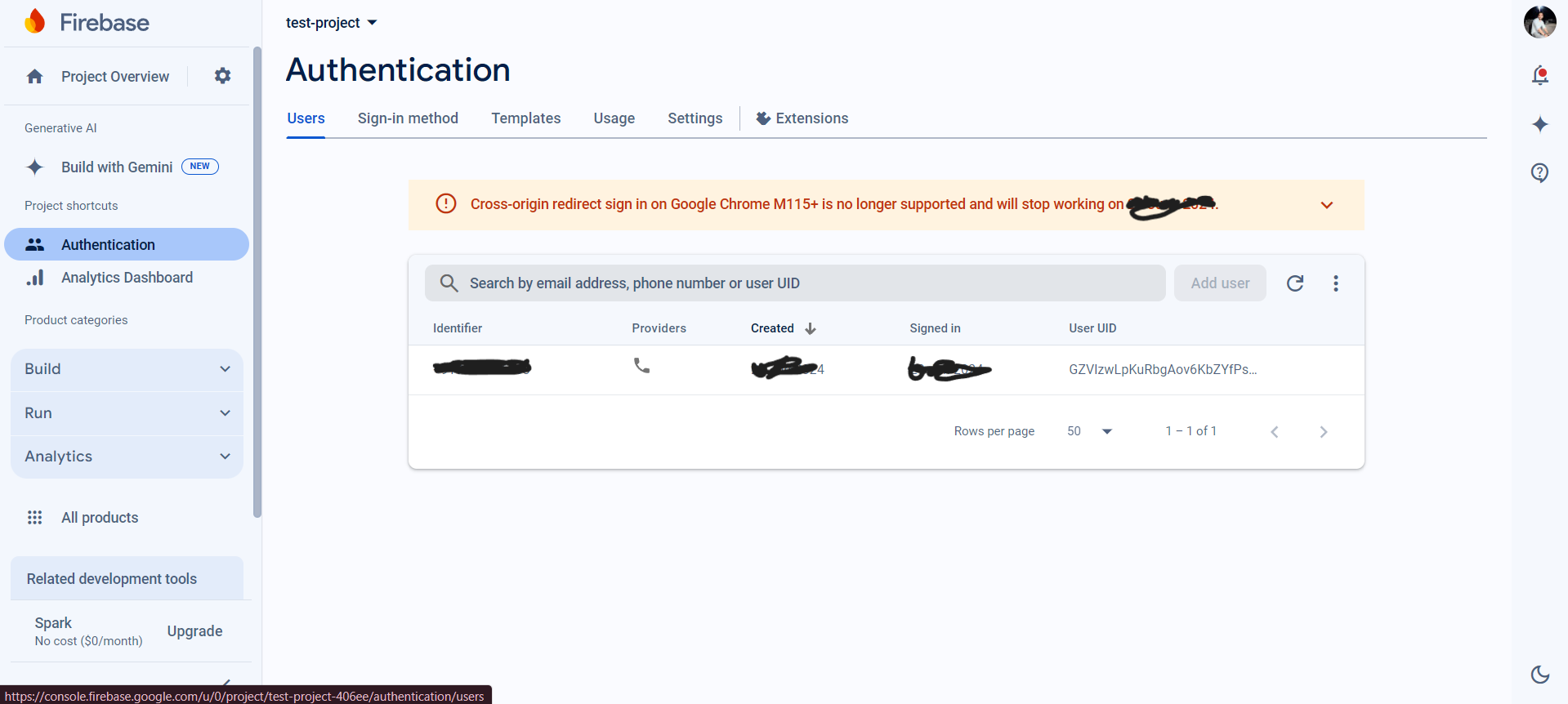
we integrated Firebase into a React application to build a phone number OTP authentication system. This is a great way to provide secure, password-less sign-in for users
🚀I will push it to GitHub you can check in my repo.